Many geosteerers already have Claude or ChatGPT open in another tab. They are good at explaining dip conversions, drafting the morning report and fixing a spreadsheet formula. Then comes the question they cannot answer: where is our well, right now, in the target?
They cannot answer it because they have never seen your well. A connector changes that. This article explains what a geosteering connector for Claude and ChatGPT can do, what it cannot, and what to check before you connect one to your project data.
What Claude and ChatGPT Can Do Without a Connector
On their own, both assistants are useful for knowledge work:
- explaining concepts such as true vertical thickness, apparent dip or minimum curvature;
- drafting reports, handover notes and emails from your notes;
- helping write or check spreadsheet formulas;
- reading a file you upload, such as a LAS file, and describing what is in it.
That last point is where care is needed. An assistant can open an uploaded LAS file and plot or summarise a gamma ray curve. It can calculate a trajectory from survey stations you paste in. But the calculation happens inside the chat, by a method you cannot easily inspect, on a copy of the data that is already out of date when the next survey arrives. Use it to explore; do not steer on it.
What an MCP Connector Adds
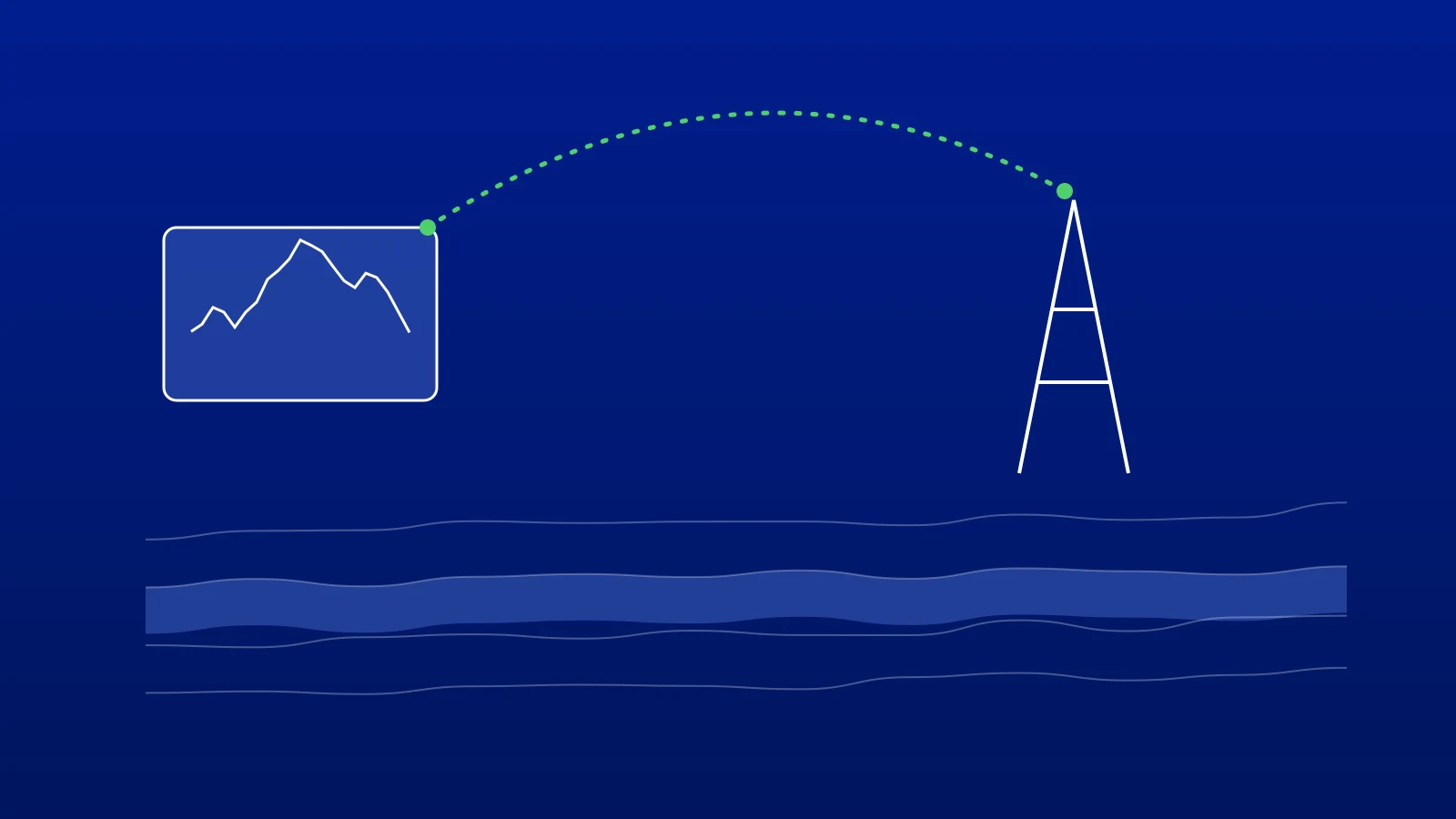
The Model Context Protocol (MCP) is an open standard for connecting AI assistants to outside services. Claude and ChatGPT can both use connectors built on it. A connector gives the assistant a set of tools from a service, such as "read the wells in this project" or "calculate the stratigraphic position", and the assistant decides when to call them while it answers you.
For geosteering, that means the assistant can:
- read your real project: the wells, trajectories, logs and interpretations as they are now, not a copy;
- use the platform's own calculations: positions, distances and plan offsets come from the same engine as your geosteering software, so they match the screen;
- prepare changes for you: a new version of an interpretation, a new well or an import, laid out for you to approve;
- work where you already are: in the same chat where you draft the report that uses those numbers.
Ask "Can ChatGPT read my LWD logs and well trajectory?" with a connector in place and the answer becomes yes: it reads them from your geosteering platform, signed in as you, and answers with the platform's numbers.
What a Connector Cannot Do
- It cannot see what the platform cannot see. If the latest survey has not reached the platform, the connector does not have it either. Real-time answers need a real-time feed into the platform first.
- It does not move files from the chat. A file attached in the Claude or ChatGPT window is generally not passed on to the connected service. Put files where the platform can read them, and import them from there.
- It does not make the language model a calculator. A good connector keeps the numbers in the platform's engine. If a connector lets the model work out positions itself, treat those numbers as unchecked.
- It does not make decisions. The assistant can tell you where the well is and what a change would look like. Whether to make it stays with you.
Five Things to Check Before You Connect
- Does it sign in as you? The connector should use your own account and see only the projects you can see, never a shared service account.
- Do changes need your approval? Every write should show exactly what will be saved and wait for you. Reading is fine without asking; writing is not.
- Is there a record? You should be able to see which changes were approved through the connector, by whom and when.
- Can you revoke it? Access should end the moment you disconnect it, from either side.
- Where does your data go? Answers pass through the assistant you use, so check your Claude or ChatGPT plan's data settings. On the platform side, ask whether your project data is used to train anything.
An Example
A geosteerer in Claude, with a geosteering connector:
You: Where is the last survey on GW-01 relative to the Sweet Spot, and how has it moved over the last three stations?
Claude: The last survey point, MD 4,886 m, is inside the Sweet Spot: 1.8 m below its top and 3.4 m above its base. Over the last three stations it has moved 0.5 m down, towards the base.
You: Draft a two-line update for the morning call.
The numbers in the first answer come from the platform. The assistant's job is to understand the question, call the right tool and write the update. The figures above are an illustration, not a real well.
GeoMaster's Connector
GeoMaster®, registered in the United Kingdom (UK00004424070), has a connector for Claude, ChatGPT and other MCP clients at https://geoengine.geomaster.uk/mcp, on the Basic, Pro and Enterprise plans. It gives the assistant the same tools as GeoEngine, the AI assistant inside each GeoMaster project: stratigraphic position against your Sweet Spot, interval scores for a GeoMatch interpretation, versions, DrillTracker, and importing wells and files.
It signs in as you and sees only your projects. Every change it prepares shows exactly what will be written and waits for your approval, and each approval is recorded, the same as in the app. Questions come out of your plan's GeoEngine query allowance, and access ends the moment you remove the connector.
To connect it:
- Claude (web and desktop): Customize › Connectors › + Add › Add custom connector, paste the URL, then sign in with your GeoMaster account.
- ChatGPT (web): turn on developer mode under Settings › Apps › Advanced settings, create an app with the URL and OAuth sign-in, then choose it from the + menu in a chat.
- Claude Code:
claude mcp add --transport http geomaster https://geoengine.geomaster.uk/mcp, then sign in from/mcp.
Step-by-step instructions, with the Team and Enterprise steps, are on the connector setup page. GeoEngine itself is included in every GeoMaster plan, including the free one, inside the app: start free or see what GeoEngine does.
Frequently asked questions

Written by the GeoMaster team at Greenstone Energy Ltd
Geosteerers and drilling engineers building geosteering software in the browser. Meet the founders →
Work With Us
Run your next well in GeoMaster. Start on the free plan, or request a 14-day Pro trial: we approve requests within 1 working day and you won't need a card.